How to code from your phone with OpenCode
Run OpenCode from your phone with its web UI and Tailscale. Set up the connection, add a home-screen shortcut, or send work from Slack through Pipa.
Posted by
 Lola
LolaRelated reading
What tools can you use to run scheduled tasks in OpenCode?
Compare cron jobs, the opencode-scheduler plugin, and Pipa for OpenCode scheduled tasks. Choose how to schedule work, receive results, and follow up.
How to automate your daily business brief to Slack
Read your connected tools each morning and send a brief with priorities, blockers, and sources to Slack.
How to monitor competitors with OpenCode and Slack
Tell your agent which competitors to watch, test the brief once, and get cited updates in Slack every morning.
My favorite part of working with agents is that I don't have to be tied to my desk. One way I do that is by using OpenCode on my phone with Tailscale. With Tailscale's free Personal plan, you can set this up without paying for remote access.
P.S. This is my older setup. I still do a lot of work on the go, but now I mostly use OpenCode through Slack with Pipa, an open-source repo built on top of OpenCode. See how I set that up below.
What are OpenCode and Tailscale?
- OpenCode is an AI coding agent: you describe a task, and it can read code, edit files, and run commands. Its web UI lets you use it in a browser.
- Tailscale connects your devices through an encrypted private network, even when your phone and computer aren't on the same Wi-Fi. That network is called a tailnet.
Watch the setup
Here's my original two-minute walkthrough. The video uses opencode serve. The instructions below use opencode web, the browser command in the OpenCode v1 docs. They also include a password to protect access.
Watch the original setup on YouTube if you prefer to open it there.
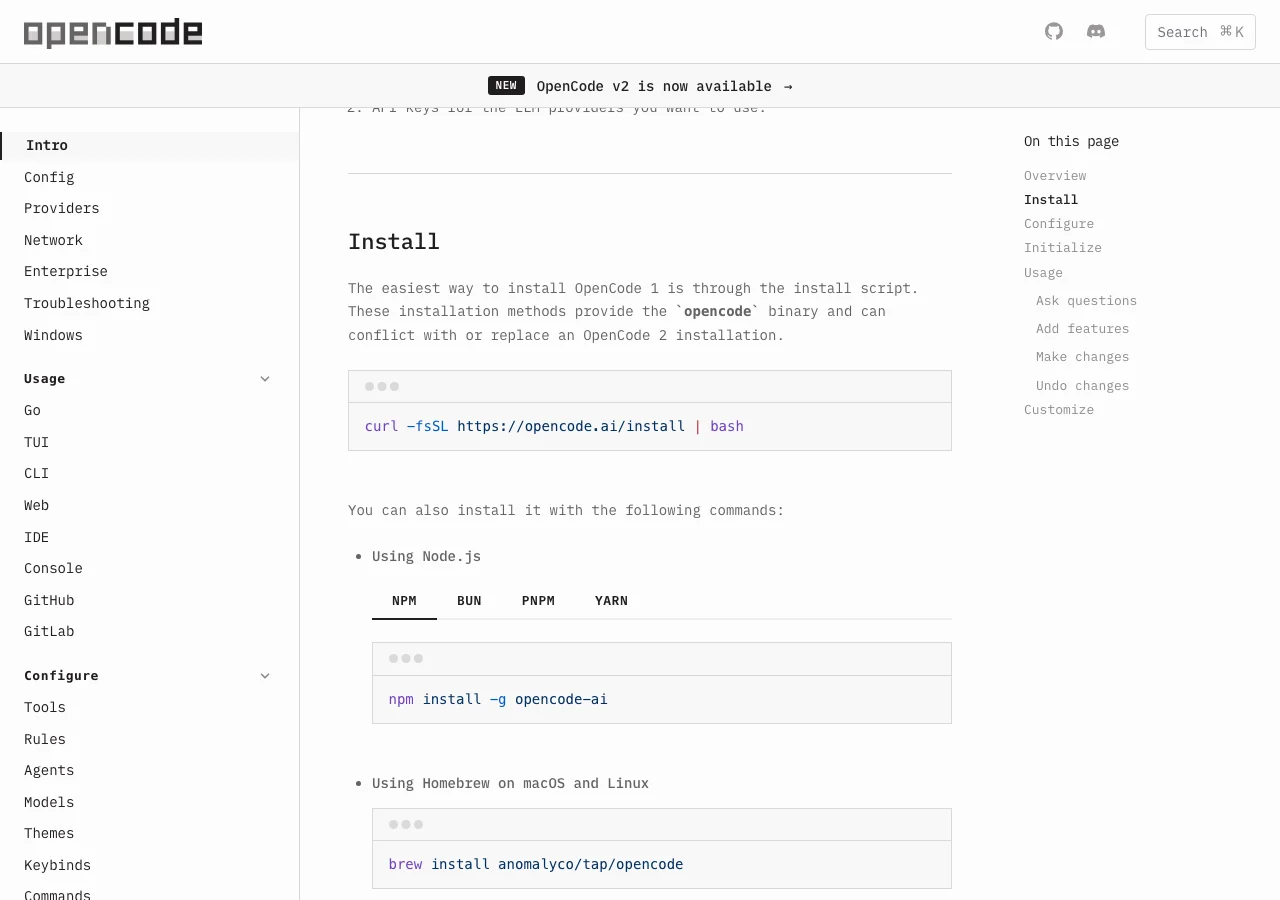
Before you start: install the tools
You need a computer with your project files, an iPhone or Android phone, and an internet connection on both. Do the computer setup first.
- Install OpenCode on your computer. Follow the OpenCode v1 installation guide for your operating system. These steps use v1. OpenCode v2 has separate instructions. If you already use v2, read those before you change your setup. Run
opencode --versionin your terminal to see which version you have. - Connect an AI model. The model is the AI that responds to your requests. Follow the provider setup instructions to connect your account or API key. Your AI provider may charge for use. Try a request on your computer before you add your phone.
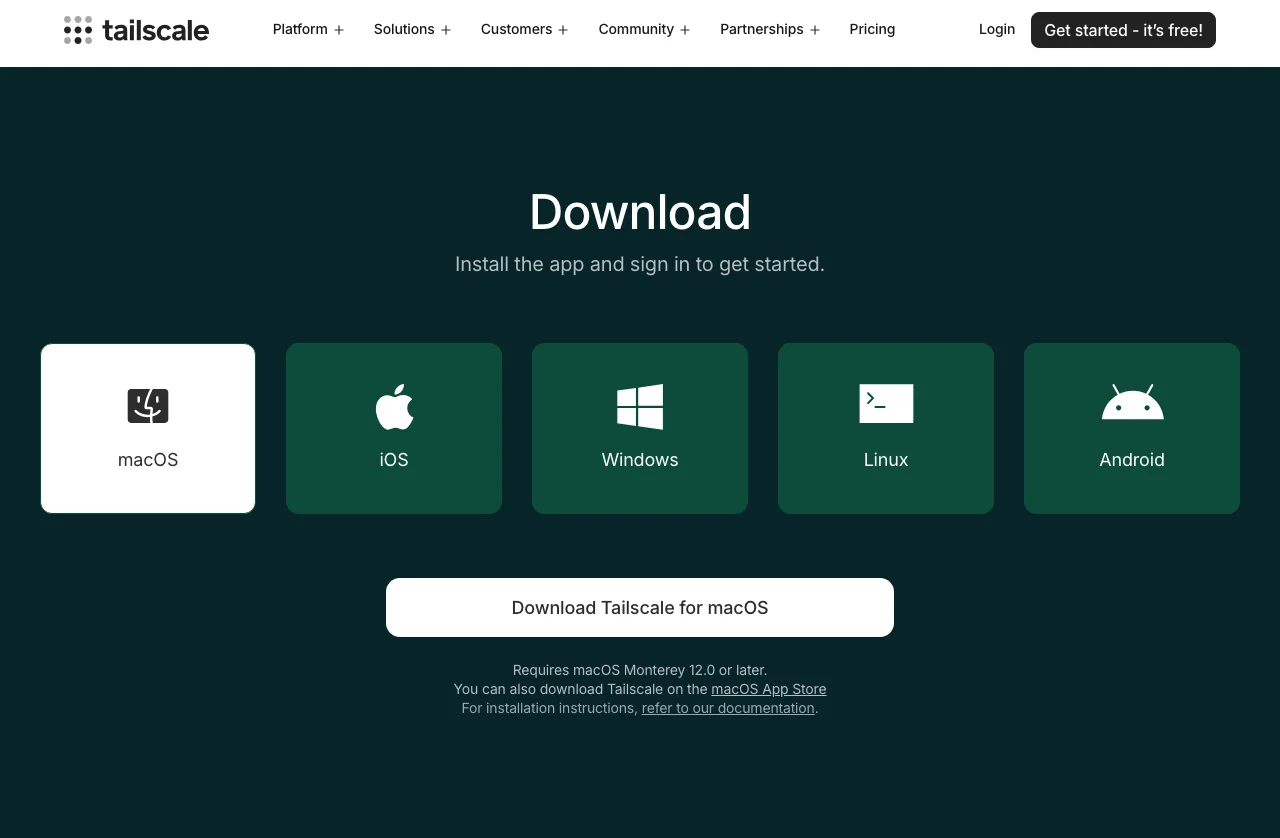
- Install Tailscale on both devices. Use the Tailscale download page for your computer, then install it on your iPhone or Android phone. Open each app and sign in with the same account. Accept the phone's VPN permission prompt so Tailscale can connect.
You don't need to move your project onto your phone. Your files and OpenCode stay on your computer.
Step 1. Start OpenCode on your computer
A terminal is the app where you type commands. On a Mac, open Terminal. On Linux, open your terminal app. On Windows, follow OpenCode's WSL setup guide first, then use its Linux terminal. The cd command moves your terminal into your project folder. Replace the example path with your own:
cd /path/to/your/project
Set a long, unique password, then start the web interface. Run both lines in the same terminal window:
export OPENCODE_SERVER_PASSWORD='replace-with-your-own-long-password'
opencode web --port 4096 --hostname 0.0.0.0
--port 4096 selects the port. Use the same port when you connect from your phone. --hostname 0.0.0.0 lets other devices reach the server. You won't type 0.0.0.0 into your phone.
The OpenCode web guide explains these settings. Leave this terminal open while you use your phone. Closing it or pressing Ctrl+C stops OpenCode.
Replace the password before running this. The default username is opencode.
Checkpoint: OpenCode should open in your computer's browser. You can also visit http://localhost:4096 on that computer. Sign in with the username and password above.
This command can also allow connections from your local network, depending on your firewall. Keep the password set and limit access to trusted devices. Don't forward this port on your router or publish it to the internet.
Step 2. Connect both devices to Tailscale
Open Tailscale on both devices and sign in with the same account. Need help with sign-in? Follow the Tailscale quickstart.
- Turn Tailscale on in both apps. On your computer, open the Tailscale device list in your browser and sign in if asked.
- Find your computer by its device name. Check that both devices show as connected.
- Copy the computer's Tailscale IPv4 address: four numbers separated by dots, usually starting with
100.. Use the computer's address, not your phone's address or its Wi-Fi address.
A tailnet is private. Your OpenCode page isn't a public website. Only devices your tailnet's access rules allow can reach it through Tailscale.
Step 3. Open the web UI on your phone
With Tailscale connected on your phone, open your browser and enter your computer's Tailscale address and OpenCode port:
http://YOUR_COMPUTER_TAILSCALE_IP:4096
Replace YOUR_COMPUTER_TAILSCALE_IP with the address you copied. If you chose a different port, replace 4096 too. Sign in with username opencode and the password you set.
For example, if your computer's Tailscale address were 100.101.102.103, you would type http://100.101.102.103:4096. That's an example, not an address to copy. Don't use localhost on your phone: that would point to the phone itself.
Open your project and start a new session, which is a conversation with OpenCode. Choose the model you connected earlier. Use Plan to think through a task or Build to make changes. For your first request, try:
Read this project's README and explain how to run it. Don't change any files.
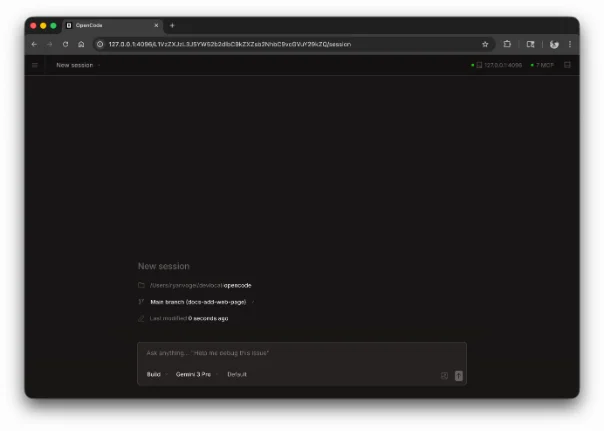
Checkpoint: You can see OpenCode's reply on your phone, using the project files on your computer. Once that works, try a small coding task and review what it changes.
If the page doesn't load
First check whether http://localhost:4096 still works on your computer. If it doesn't, restart OpenCode in the terminal. If it works there but not on your phone, confirm Tailscale is connected on both devices and recheck the computer's IP address and port. Then check your firewall settings and tailnet access rules.
Using Windows with WSL? WSL runs Linux inside Windows. Its network setup can stop your phone from reaching OpenCode, even when the page works on your computer. Follow Microsoft's WSL networking guide to set up port forwarding or mirrored networking. Those options let other devices reach the server running inside WSL.
Step 4. Add a home-screen shortcut
Only do this after the page works in your phone's browser.
- iPhone: open the working address in Safari, tap Share, choose Add to Home Screen, name it OpenCode, and tap Add. See Apple's home-screen guide.
- Android: open the address in Chrome, tap the three-dot menu, then Add to Home screen. Choose the shortcut or install option offered by your browser, name it OpenCode, and confirm. See Chrome's shortcut guide.
The shortcut opens the page; it doesn't install OpenCode or move your projects onto the phone. Keep Tailscale connected and OpenCode running on your computer.
How I now work with OpenCode from my phone
These days, it's through Slack. I use Pipa to send OpenCode a task from my phone and come back to the reply in the same thread.
Pipa connects Slack to OpenCode on your computer. For this setup, your phone only needs Slack and an internet connection. It doesn't need Tailscale.
To try it, you'll need Node.js 22 or newer, OpenCode v1 connected to a model, and a Slack workspace where you can create an app. The install guide has the full setup.
- Install Pipa on your computer:
npm install --global @usepipa/pipa. - In the project folder where you want OpenCode to work, run
pipa init. Follow the prompts to create the Slack app, connect your credentials, and choose allowed users and channels. - Run
pipa start, invite your agent to a trusted, allowed Slack channel, and mention it from your phone.
For a first request, try:
@your-agent Read this project's README and tell me how to run it.
Use the name you gave your agent. Continue in that thread for follow-up questions.
The same catch applies: your computer needs to stay awake and online, with pipa start running. Pipa Local runs on your computer; Pipa Managed runs on a separate hosted computer. If you want to try the Slack setup, follow the full OpenCode Slack setup walkthrough.
Questions about using OpenCode on mobile
Does OpenCode run on the phone?
In this setup, OpenCode runs on your computer. Your phone opens its browser interface over Tailscale.
Do I need to be near my computer?
No. Both devices need an internet connection and permission to communicate through Tailscale. Keep your computer awake with OpenCode running.
Can I close my laptop?
Only if it stays awake and connected when closed. If it sleeps, shuts down, or loses its network connection, your phone can't reach OpenCode.
Is the home-screen shortcut a native OpenCode app?
It's a shortcut to the web interface. It uses the same server and network connection as the browser page.