How to connect an MCP server to OpenCode
Connect an MCP server to OpenCode, check its tools, and run a prompt that uses them. Includes configuration, authentication, and troubleshooting.
Posted by
 Lola
Related reading
How to create agents in OpenCode
Create primary agents and subagents in OpenCode. Add a Markdown file to your project, choose its mode, and run it with a working example.
How to switch OpenCode models from Slack
Choose the OpenCode model Pipa uses for new Slack threads. Learn the model command, first-time setup, and what happens to existing conversations.
OpenCode skills: install, create, and troubleshoot them
Learn where OpenCode skills live, create and load a SKILL.md file, install Pipa's business skills, and fix missing skills or permission problems in your setup.
An MCP server gives OpenCode tools for working with services outside your project. MCP stands for Model Context Protocol. Depending on the server, those tools can search documentation, read your calendar, or work with a tracker.
An OpenCode skill supplies instructions. An MCP server exposes tools those instructions can use. Installing a skill that says to read your tracker doesn't connect the tracker.
To illustrate the setup, I'm going to use Composio. I use it every day because it lets me connect multiple tools through one MCP server. You can use another remote MCP server by substituting its name, URL, and authentication requirements.
Step 1. Before you start
Start with OpenCode installed and a working model provider. If you haven't run a prompt yet, follow the OpenCode installation guide.
Get the server's connection details from its provider:
- A name you'll use in OpenCode, such as
my-server. - The MCP endpoint URL.
- Any sign-in or API-key requirements.
Remote servers connect through a URL. Local servers run as a process on your computer and need a command instead. The steps here cover a remote server; see the MCP documentation for local-server configuration.
Step 2. Add the server to OpenCode
Run this in the project where you want the connection, replacing both placeholders:
opencode mcp add my-server --url https://mcp.example.com/mcp
my-server is the name you choose. https://mcp.example.com/mcp is an example URL, not a working service. Replace it with the endpoint your provider supplies.
For the Composio illustration, the command is:
opencode mcp add composio --url https://connect.composio.dev/mcp
This writes the connection to the project's OpenCode configuration. To make a server available across projects instead, add --global to its command.
If you prefer to edit the config file by hand, the equivalent generic entry is:
{
  "$schema": "https://opencode.ai/config.json",
  "mcp": {
    "servers": {
      "my-server": {
        "type": "remote",
        "url": "https://mcp.example.com/mcp"
      }
    }
  }
}
Servers go under mcp.servers. Use either the command or the JSON entry. If you edit an existing file, merge the server entry into it rather than replacing your other settings.
Start OpenCode in the same project:
opencode
If it was already running when you changed the configuration, run opencode reload from the project's terminal before testing.
Step 3. Authenticate and check the connection
From the project's terminal, check that OpenCode sees the server:
opencode mcp list
It prints each server with its state. needs authentication means sign in; connected means it's ready.
In OpenCode, enter this in the prompt:
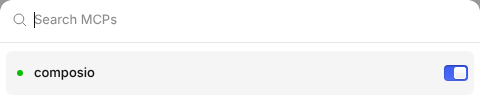
/mcps
Find the server you added. If it needs authentication, select it and complete the sign-in flow. For a server that supports OAuth, you can also run this from the project's terminal, replacing the name:
opencode mcp auth my-server
For the illustration, use composio as the name. Follow the provider's authorization flow, then check /mcps in the running OpenCode instance for a connected status.
Some servers use an API key in a request header instead. Follow the provider's instructions for the header name, set "oauth": false in that server's entry, and use OpenCode's {env:VARIABLE_NAME} syntax to reference an environment variable. Keep the key out of committed configuration. The remote-server configuration reference shows the format.
Connecting a server and authorizing an app are separate steps. With Composio, the agent can prompt you to connect an app when your task needs it; connecting Composio alone doesn't give it access to every account you use. OpenCode's permissions are a third check: authentication doesn't authorize every action an app supports.
Step 4. Ask for a task that uses the server
Start with a request that reads something you can check. Name the server and the app or resource you want it to use.
For the illustration, you could paste this into OpenCode's chat:
Use Composio to connect Google Calendar if it isn't connected yet.
After I authorize it, list tomorrow's events from my primary calendar.
Include each event's start time and timezone. Don't create or change anything.
This is an example prompt for your own account. Composio prompts you to connect the app; approve it and the same request continues. If you use another server, choose a read-only task supported by its tools.
Expand the tool activity in the response. Check that the agent called the intended server's tools, that those calls returned results, and that the answer matches them. In the default Code Mode, MCP calls can appear inside an Execute activity.
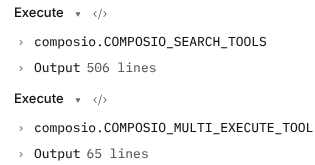
For the calendar example, compare the returned events, dates, and timezone with your calendar. An empty result can be correct if you have no events. An authentication error means the read hasn't succeeded. A plausible answer alone doesn't prove a tool was used.
Step 5. Fix a connection or tool problem
If the server is missing, check that OpenCode is using the project where you added it and that its entry is under mcp.servers. If you changed the configuration while OpenCode was running, run opencode reload from that project's terminal.
If it's disconnected, check the endpoint URL and the status in /mcps. Complete sign-in if requested. For an API-key server, check that the environment variable is available to the process running OpenCode.
If the server connects but an app request fails, check that app's connection separately. A server connection, an app authorization, and permission to perform an action are different checks.
If the agent doesn't use the server, name it in your prompt, look for its calls inside Execute activities, and check that permission rules don't deny its tools. Use the MCP permissions reference before changing rules.
To keep a server configured without connecting, set "disabled": true inside its server entry. To remove it, delete the entry from the project or global configuration where you added it.
FAQ
Do I need an API key for every MCP server?
No. Some use OAuth sign-in, some require an API key, and others don't require authentication. Use the server provider's instructions.
Can one MCP server connect multiple apps?
Yes, if it provides that functionality. Composio is one example: it can discover tools across supported apps and ask you to authorize them when needed. Other servers expose tools for one service.
Should I add every server I might use?
Start with the server needed for your task. More connections add tools and instructions for the agent to consider. Add another when you have work for it.
Take your OpenCode setup into Slack
Now that you've got MCP servers working, take your OpenCode setup a bit further and use it from Slack. I use Pipa to trigger OpenCode sessions and run Lunch Pail Labs every day.
Here's how to run OpenCode from Slack.